

LocalScrape - Visual Web Scraper


Hover. Click. Download. Extract data from any webpage in seconds - no code, no cloud, no tracking.
What is LocalScrape?
LocalScrape is a Chrome extension that lets you visually select elements on any webpage and instantly export all matching content as CSV or JSON. Everything runs 100% locally in your browser. No data ever leaves your machine.
Features
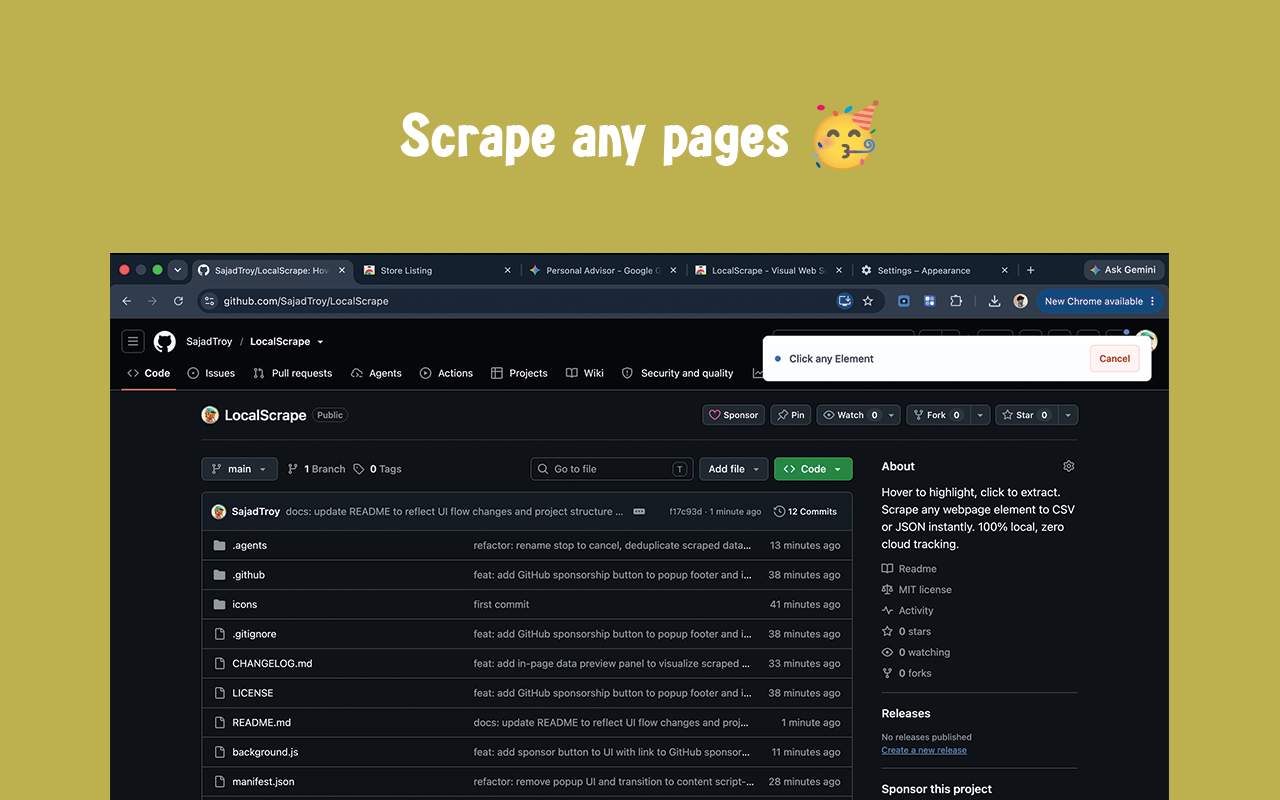
- Visual element picker — hover over any element to highlight it with a blue outline
- Smart similarity matching — click once to extract all elements sharing the same CSS selector
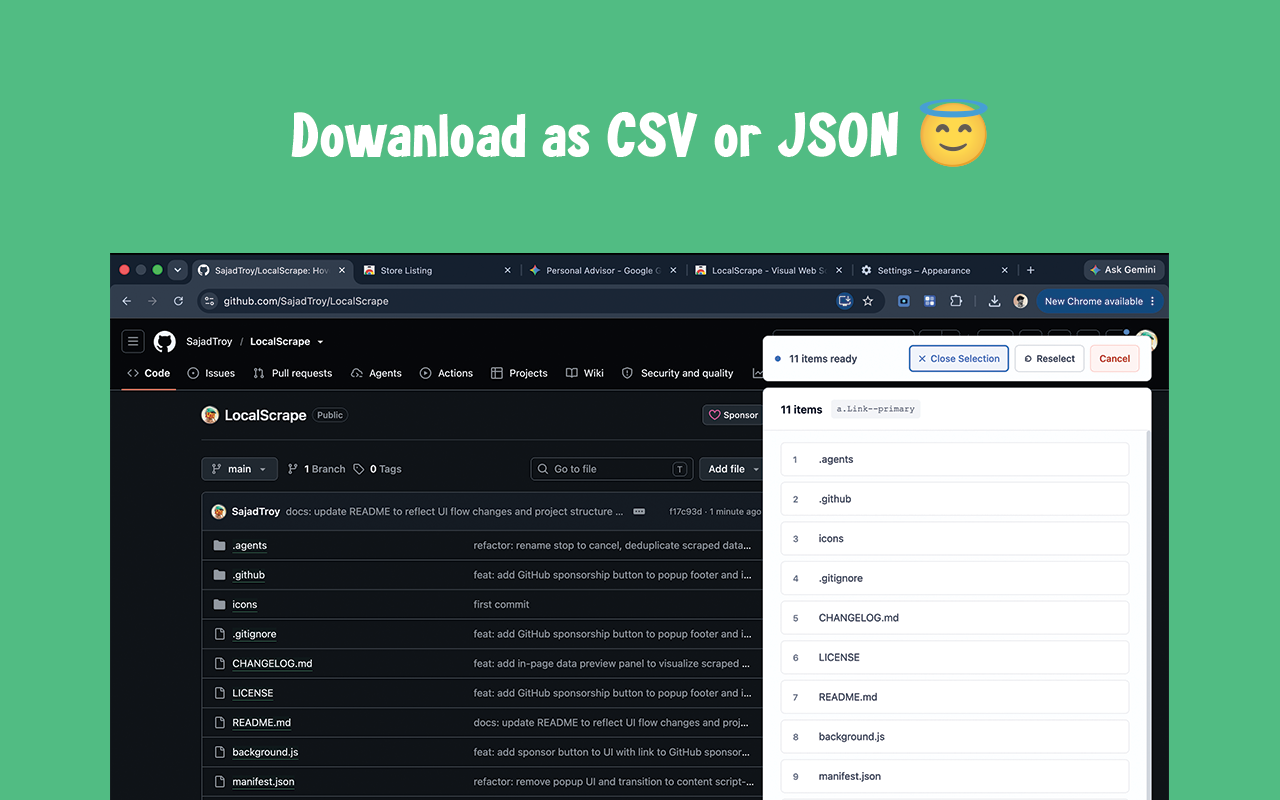
- In-page preview — view and verify extracted data directly on the page
- CSV & JSON export — RFC-4180 compliant CSV or structured JSON, your choice
- 100% local - no server, no account, no analytics
- Keyboard shortcuts -
Escapeto cancel,Ctrl/Cmd+Zto undo a selection and pick again - Instant download - files saved directly to your Downloads folder via the browser
Installation (Developer Mode)
The extension is not yet on the Chrome Web Store. Load it unpacked for now.
- Clone or download this repository:
git clone https://github.com/SajadTroy/LocalScrape.git - Open Chrome and navigate to
chrome://extensions - Enable Developer mode (toggle in the top-right corner)
- Click Load unpacked
- Select the
LocalScrapefolder - The LocalScrape icon will appear in your toolbar
How to Use
| Step | Action |
|---|---|
| 1 | Click the LocalScrape icon in the Chrome toolbar to activate the scraper |
| 2 | Move your mouse over the page - elements highlight in blue as you hover |
| 3 | Click the element you want to extract — all similar elements highlight in green |
| 4 | Preview your data by clicking Open Selection on the floating banner |
| 5 | Click Download CSV or Download JSON directly from the results panel |
Keyboard Shortcuts
| Key | Action |
|---|---|
Escape |
Cancel scraping and remove all highlights |
Ctrl / Cmd + Z |
Undo selection and pick a different element |
Permissions
LocalScrape requests only the minimum permissions required:
| Permission | Why it's needed |
|---|---|
activeTab |
Access the current tab when you click the extension icon |
scripting |
Inject the hover/click scraper script and styles into the page |
downloads |
Save the exported CSV or JSON file to your Downloads folder |
No <all_urls> host permission is requested. LocalScrape only activates on the tab you explicitly click it on.
Privacy
- No data collection. LocalScrape does not transmit, store, or log any page content.
- No network requests. The extension makes zero outbound connections.
- No tracking. There are no analytics, telemetry, or third-party services.
- All extracted data stays on your machine until you choose to download it.
Project Structure
LocalScrape/
├── .github/FUNDING.yml   # GitHub Sponsors config
├── icons/                # Extension icons (16, 48, 128px)
├── background.js         # Service worker - handles script injection and file downloads
├── manifest.json         # Manifest V3 config
├── scraper.css           # Injected page styles (flat minimal theme)
└── scraper.js            # Injected scraping engine and UI logic
Development
No build step required - this is vanilla HTML, CSS, and JavaScript.
- Make your changes
- Go to
chrome://extensions - Click the refresh icon on the LocalScrape card
- Test on any regular webpage
Changelog
See CHANGELOG.md for the full version history.
Support the Project
If LocalScrape saves you time, consider sponsoring its development:

Your support helps keep the project free, open-source, and actively maintained.